Ensuring Harmony: Understanding CPU and GPU Compatibility for Peak Performance
In the realm of PC building and upgrades, the CPU (Central Processing Unit) and GPU (Graphics Processing Unit) stand as the cornerstones of performance. The CPU handles general processing tasks, while the GPU is specialized for rendering visuals and accelerating graphics-intensive applications. While both components can operate somewhat independently, their synergy is paramount for a smooth and efficient computing experience. A mismatch between these two can lead to bottlenecks, reduced performance, and even system instability.
Why CPU and GPU Compatibility Matters
The CPU and GPU work together to deliver the visuals you see on your screen. The CPU handles tasks like game logic, AI, physics calculations, and preparing data for rendering. The GPU then takes this data and transforms it into the images you see.
Here’s why compatibility is crucial:
-
Avoiding Bottlenecks: A powerful GPU paired with a weak CPU (or vice versa) can create a bottleneck. The slower component will limit the performance of the faster one. For instance, if you have a top-tier GPU but a low-end CPU, the GPU will be waiting for the CPU to process data, resulting in lower frame rates and stuttering in games.
-
Optimal Performance: When the CPU and GPU are well-matched, they can work in harmony to deliver the best possible performance. This means smoother gameplay, faster rendering times, and an overall more responsive system.
-
System Stability: Incompatibility can sometimes lead to system instability, crashes, and driver issues. Ensuring that your CPU and GPU are compatible can help prevent these problems.
-
Future-Proofing: Building a balanced system allows for easier upgrades in the future. If your CPU and GPU are well-matched, you can upgrade one component without immediately needing to replace the other.
Factors Affecting CPU and GPU Compatibility
Several factors play a role in determining whether a CPU and GPU are compatible:
-
CPU Generation and Socket: CPUs are designed to work with specific motherboard sockets. Ensure that your CPU is compatible with the motherboard you choose, as this will dictate the available PCIe lanes and overall system architecture. Newer CPU generations often have improved features and performance, but they may require newer motherboards.
-
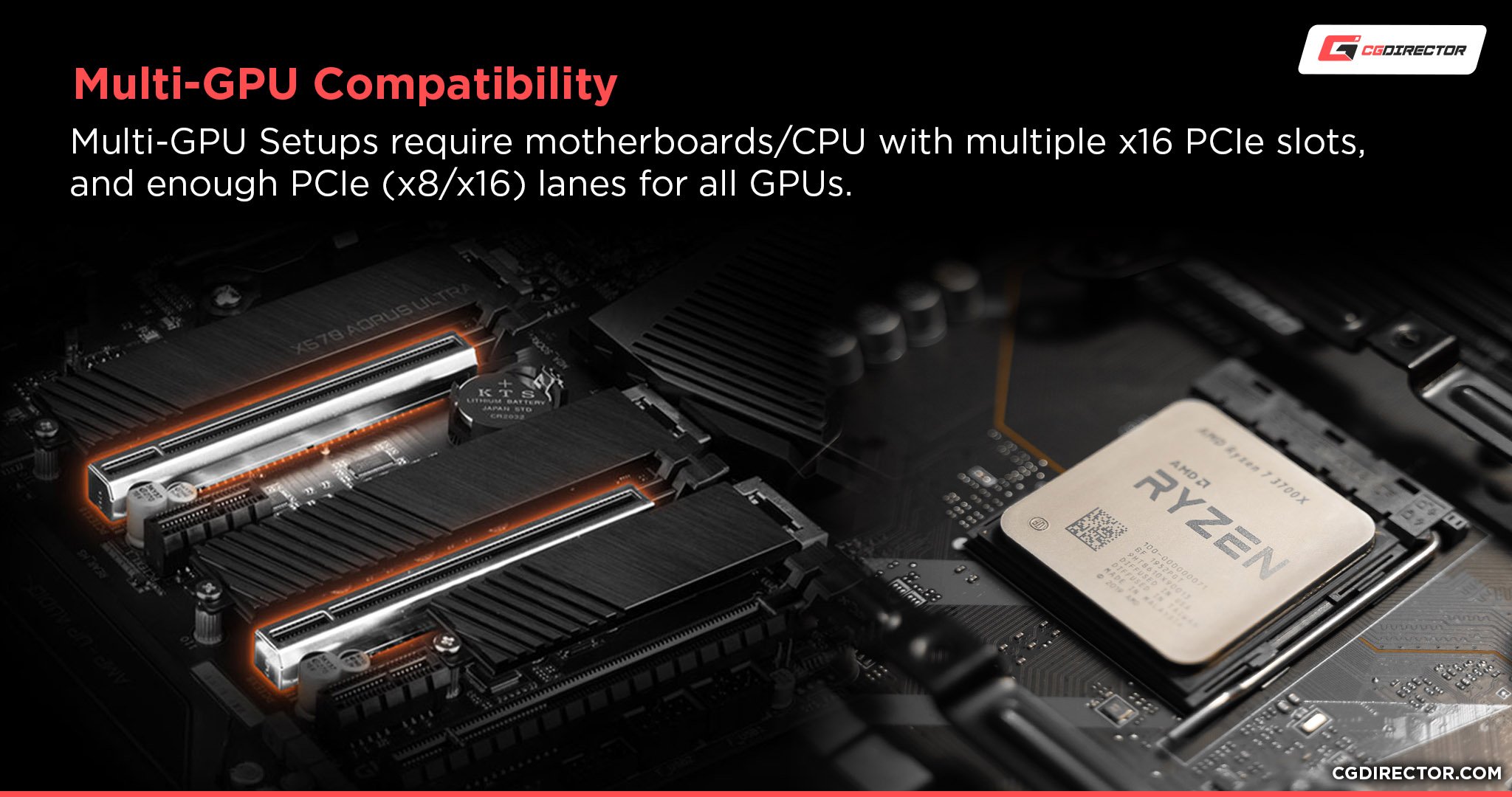
PCIe (Peripheral Component Interconnect Express) Version: GPUs connect to the motherboard via PCIe slots. Modern GPUs use PCIe 4.0 or PCIe 5.0, while older motherboards may only support PCIe 3.0. While a PCIe 4.0 GPU will still work in a PCIe 3.0 slot, it may experience a slight performance decrease. It’s generally recommended to use a motherboard that supports the same PCIe version as your GPU.
-
Power Supply Unit (PSU): The CPU and GPU are the two most power-hungry components in a PC. Ensure that your PSU has enough wattage to handle both components, as well as any other peripherals. Insufficient power can lead to system instability and crashes.
-
RAM (Random Access Memory): While not directly related to CPU and GPU compatibility, RAM plays a crucial role in overall system performance. Insufficient RAM can cause bottlenecks, especially in memory-intensive applications like gaming and video editing.
-
Resolution and Refresh Rate: The resolution and refresh rate of your monitor will impact the demands on your CPU and GPU. Higher resolutions and refresh rates require more processing power. Ensure that your CPU and GPU are capable of handling your desired resolution and refresh rate.
Understanding CPU and GPU Tiering
To get a general idea of compatibility, you can broadly categorize CPUs and GPUs into performance tiers:
-
Low-End: Entry-level CPUs and GPUs suitable for basic tasks like web browsing, office work, and light gaming.
-
Mid-Range: CPUs and GPUs that offer a good balance of performance and affordability, suitable for most modern games at 1080p or 1440p resolution.
-
High-End: Powerful CPUs and GPUs designed for enthusiasts and gamers who demand the highest performance, suitable for 4K gaming, VR, and professional applications.
It’s generally recommended to pair CPUs and GPUs within the same performance tier for optimal balance. For example, pairing a mid-range CPU with a mid-range GPU will provide a more balanced experience than pairing a high-end GPU with a low-end CPU.
Enter Compatibility Checkers: Tools for Peace of Mind
Fortunately, several online tools and resources can help you check the compatibility of your CPU and GPU. These tools typically provide information on:
- Socket Compatibility: Whether the CPU is compatible with the motherboard socket.
- PCIe Compatibility: Whether the GPU is compatible with the motherboard’s PCIe slots.
- Power Requirements: An estimate of the power consumption of the CPU and GPU.
- Potential Bottlenecks: An indication of whether the CPU or GPU may be a bottleneck for the other.
Some popular CPU and GPU compatibility checkers include:
- PC Part Picker: A comprehensive tool that allows you to select your components and checks for compatibility issues.
- Bottleneck Calculators: Websites that estimate the potential bottleneck between your CPU and GPU.
- Manufacturer Websites: CPU and GPU manufacturers often provide compatibility lists and specifications on their websites.
How to Use a Compatibility Checker
Using a compatibility checker is typically straightforward:
- Select your CPU and GPU: Choose the specific models of CPU and GPU you are considering.
- Select your Motherboard: The compatibility checker will usually ask you to select your motherboard as this is the component that determines compatibility
- Review the Results: The tool will analyze the components and provide a report on any compatibility issues.
Limitations of Compatibility Checkers
While compatibility checkers are helpful, they have limitations:
- General Guidelines: They provide general guidelines, but real-world performance can vary depending on the specific application and system configuration.
- Not Always Up-to-Date: The databases of compatibility checkers may not always be up-to-date with the latest components.
- Subjective Bottleneck Assessments: Bottleneck assessments are often subjective and depend on the specific workload.
Best Practices for Ensuring Compatibility
In addition to using compatibility checkers, follow these best practices:
- Research: Read reviews and benchmarks of CPUs and GPUs to get an idea of their performance and compatibility.
- Consult Forums: Ask for advice on PC building forums and communities. Experienced builders can provide valuable insights.
- Check Manufacturer Websites: Refer to the CPU, GPU, and motherboard manufacturers’ websites for compatibility information.
- Consider Your Needs: Choose components that are appropriate for your intended use case.
Conclusion
CPU and GPU compatibility is a critical aspect of PC building and upgrades. By understanding the factors that affect compatibility and using compatibility checkers, you can ensure that your components work in harmony to deliver the best possible performance and a stable system. Remember to research, consult forums, and consider your specific needs when selecting your CPU and GPU. By taking these steps, you can build a PC that meets your requirements and provides a smooth and enjoyable computing experience.